 NameSense
Prepare practice copies
Install and open NameSense first. Download the practice ZIP below and extract it into a new practice folder. It contains three plain-text files: 01-brief.txt, 02-checklist.txt and 03-notes.txt.
- Use only these three practice files, within the free limit of 3 files per batch. Keep your working originals out of the exercise: you will apply real filename changes, then try undo.
The sample contains no personal information. Import the three extracted .txt files, not the ZIP or the whole folder. Extraction can change file creation dates.
Want fixed numbers instead? Follow the numbering steps for this sampleChoose Add Date and import the files
Select the built-in Add Date rule in the sidebar. Drag the three .txt files into the workspace, or select them with Add Files. Wait for import to finish. This step needs no AI configuration.
- The rule uses the file creation date, not a date in its text. Copying, downloading or extracting files can change it.
- Check the file list: it should contain the three practice files with the same names as in Finder. Remove any unrelated items from the list so this exercise stays at three files.
Generate suggestions and review them
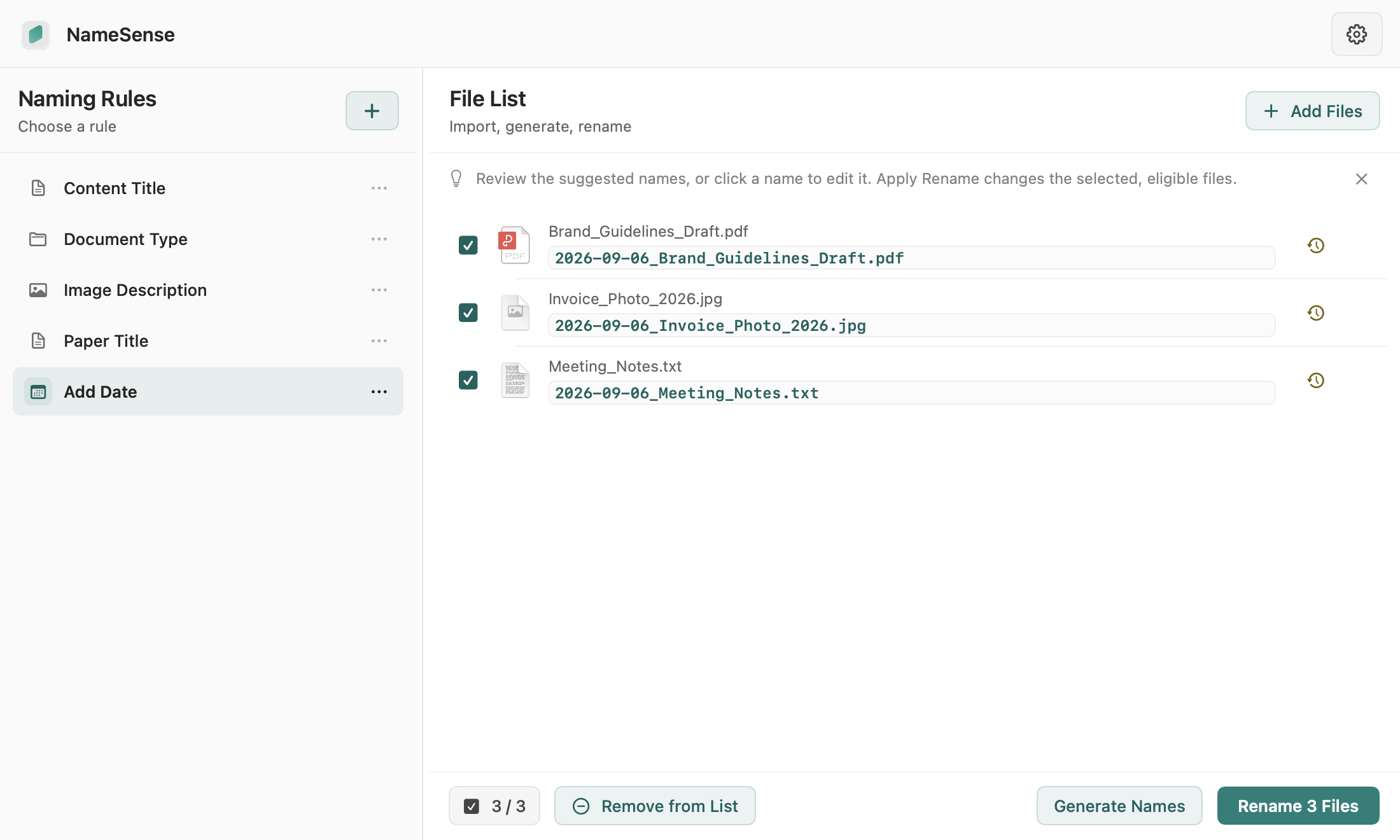
Click Generate Names and compare each original name with its suggestion. This creates a preview only: filenames in Finder should still be unchanged. A suggestion is not an applied rename.
- For example, 01-brief.txt created on 2026-09-08 can preview as 2026-09-08_01-brief.txt. That date is illustrative. Check your file’s creation date; it does not need to match the screenshot or the ZIP date.
- Check the date, original filename and .txt extension in all three suggestions, and make sure the intended items are selected. If a conflict or invalid name is reported, edit the suggestion or rule before applying.
Apply the rename and verify undo
When all three items are ready, click Rename 3 Files. If folder permission is requested, select the folder containing these practice files as prompted. Wait for the result and check what actually completed.
- Open the practice folder in Finder. Confirm that all three names now include a date and that the file count and extensions are unchanged. If only some files were renamed, read the errors before treating the batch as complete.
- Do not move or rename the files in another app during the exercise. Changed files may prevent a safe undo.
- For this exercise, click Undo in the success notice, then check in Finder that 01-brief.txt, 02-checklist.txt and 03-notes.txt have returned. The exercise is complete only after you have checked the result.
If the result does not match
Keep the originals and check the current state before continuing. These checks apply to this local Add Date exercise. For a specific error, continue to help or the supported-format reference.
Scroll sideways to see the full comparison →
| What you see | Check first | What to do next |
|---|---|---|
| Fewer than three files imported | Has the ZIP been extracted? Did you select the three .txt files, rather than the archive or folder? | Select the extracted files again. If a file still will not open or import, note its type and the error, then check supported formats. |
| An AI setup prompt appears | Is Add Date selected? Rules such as Content Title and Paper Title use AI. | Switch back to Add Date and generate suggestions again. This exercise needs neither Pro nor an API key. |
| A conflicting or invalid name | Do two suggestions match? Does the target folder already contain that name? Is an invalid-name warning shown? | Edit the suggestion or adjust the rule and resolve the warning before applying. Do not delete an existing file just to finish the exercise. |
| Undo did not restore every name | Was a file moved or renamed in another app? Is its original name occupied? Does the app need folder access? | Check the actual results in Finder and the app, then follow the error message. If unsure, stop and contact support with the app version and error details. |